
Every freelancer and small business owner knows this moment: you download an invoice, it arrives as invoice_scan_final_2.pdf, you tell yourself you will rename it later, and three months later you are searching your Downloads folder before a tax deadline.
The solution is to automatically rename invoices at the source, the moment they arrive, before they pile up. This guide covers 5 tools that do exactly that: what each one is good at, who it is for, and what it costs. If you rename more than invoices, the same file naming tools handle any document type.
Quick answer: To automatically rename PDF invoices, use a tool that reads the document content and extracts vendor name, date, and invoice number — instead of relying on the original filename. For Google Drive users, Filently does this in the background with no rules or manual steps. File Juggler (Windows) and Hazel (macOS) offer rule-based folder monitoring. For a one-time batch without a subscription, RenameMyInvoice handles up to 10 files per day free.
Still opening every PDF just to figure out what it is? Filently identifies each document and renames it automatically. Inside your Google Drive.
First 25 documents free. 2-minute setup. No credit card needed.
What “automatically rename PDF invoices” actually means
Before comparing tools, it helps to understand two different approaches:
Rule-based renaming: you define patterns (“if the filename contains ‘invoice’, rename it to X”), the tool applies them. Fast to set up for predictable invoice formats, breaks when formats change.
Content-based renaming: the tool goes through the PDF, extracts vendor name, date, invoice number, and builds the filename from that. Works on any invoice format without manual rules.
Most of the tools below use content-based renaming. That is the approach that actually scales. Once documents are renamed automatically, automating the full document filing workflow is the logical next step.
5 Tools to Rename PDF Invoices Automatically
Here are the tools that can rename PDF invoices automatically, ranging from zero-touch cloud automation to rule-based desktop apps.
1. Filently: Best for Google Drive users who want zero-touch automation
Platform: Web / Google Drive (Dropbox and OneDrive coming soon)
Price: First 25 documents free, then from $6/month
Best for: Freelancers and small businesses receiving invoices regularly
Filently connects to your Google Drive and renames incoming documents automatically. It picks up the vendor name, date, invoice number, and amount from the PDF and applies a naming convention to each file without you touching it.
The naming convention is fully configurable. Filently learns from your existing folder structure and file names, or you define it yourself from scratch. Want the invoice amount in the filename? You can include it. Prefer a different date format or separator? That is up to you. The system applies whatever convention you set, consistently, to every document that arrives.
What that looks like in practice: a supplier sends invoice.pdf. You forward the email to your Filently address. Within seconds it appears in your Finance folder as 2026-03-15_AcmeCorp_Invoice-1052_480USD.pdf, or whatever format you have configured. No rule to write, no tool to open.
The difference from every other tool on this list: Filently runs continuously in the background. Files get processed the moment they arrive, whether you are at your desk or not. It also handles batch processing: drop existing files into your Filently inbox folder and they are renamed and organized in one pass, exactly like incoming files. A full Drive-wide Deep Clean that reorganizes your entire existing Google Drive is coming in July 2026.
AI organizers differ mainly in what they do after reading a document — some only suggest, some actually file.
| Pros | Cons |
|---|---|
| Fully automatic, no manual triggers | Requires Google Drive (Dropbox/OneDrive coming soon) |
| Naming convention fully configurable, or learned from existing files | Free tier limited to 25 documents |
| Reads both text-based and scanned PDFs via OCR | |
| Files stay in your Google Drive, CASA Tier 2 certified |
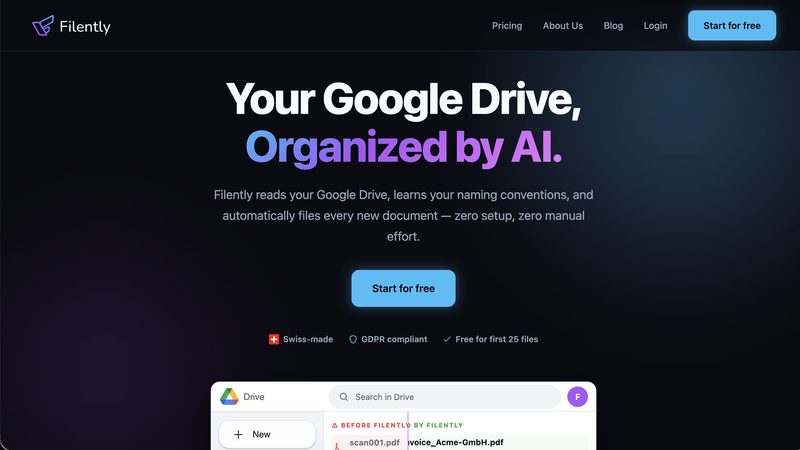
Website: filently.com
Your invoices live in Google Drive? Filently is ready. Connect once and every PDF invoice gets renamed and filed automatically. Forever.
First 25 documents free. No credit card. 2-minute setup.
2. File Juggler: Best for Windows users who want rule-based automation
Platform: Windows only
Price: $40 one-time purchase, 30-day free trial available
Best for: Windows users who receive invoices in predictable formats
File Juggler monitors folders and applies rules to incoming files. You define a rule (“if a PDF arrives in this folder, read the text inside and rename it using the invoice number”), and it runs automatically.
It works well when your invoices come from consistent sources: same layout, same vendors. If you receive invoices from dozens of different suppliers with different formats, the rules need more maintenance.
| Pros | Cons |
|---|---|
| Simple rule setup, no coding required | Windows only |
| Works on any file type, not just PDFs | Rules break if invoice formats change |
| One-time purchase ($40) | Requires manual setup per rule |
| 30-day free trial | Not cloud-connected |
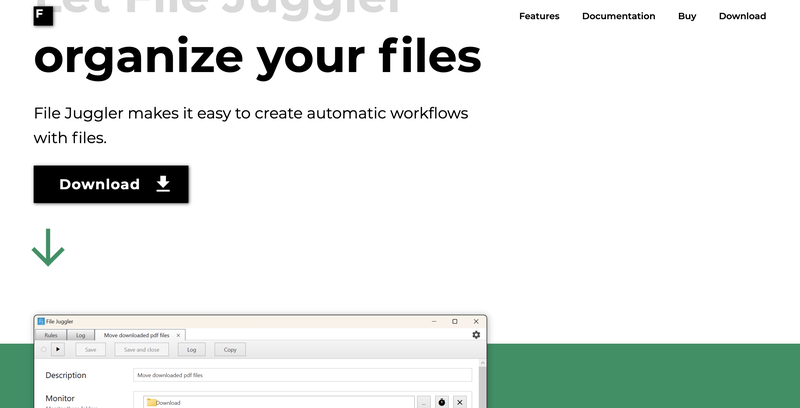
Website: filejuggler.com
3. Hazel: Best for macOS users who want rule-based automation
Platform: macOS 12 (Monterey) or later
Price: One-time purchase, around $42 USD
Best for: Mac users who want a flexible, scriptable automation tool
Hazel is the macOS equivalent of File Juggler. It monitors folders and applies rules, including reading PDF content to extract invoice data for renaming. Its strength is deep macOS integration and scriptability: you can trigger AppleScripts or Shortcuts as part of a rule.
If your invoices are scanned images rather than text PDFs, Hazel 6 reads them directly using built-in on-the-fly text recognition, no separate OCR tool needed.
A typical setup: Hazel watches your Downloads folder. When a PDF arrives that contains the word “Invoice”, it extracts the client name and invoice number, renames the file to [ClientName]-[InvoiceNumber].pdf, and moves it to the correct client folder. You can extend this with an AppleScript that simultaneously logs the invoice in a spreadsheet.
| Pros | Cons |
|---|---|
| One-time purchase | macOS only |
| Highly scriptable and flexible | Rules require setup and maintenance |
| Built-in OCR for scanned PDFs (v6+) | AppleScript knowledge needed for advanced rules |
| Large community and documentation |
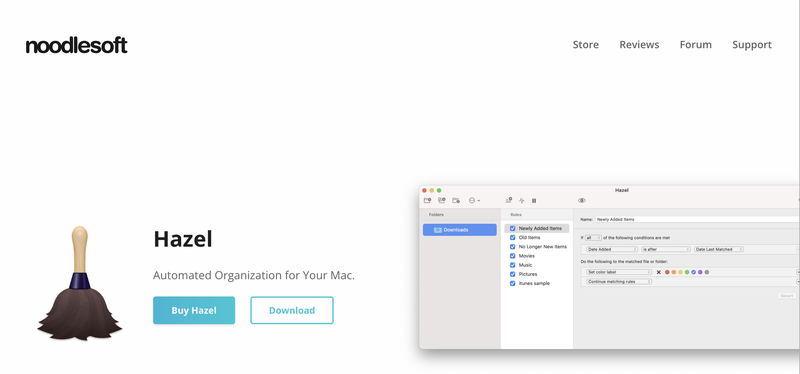
Website: noodlesoft.com
4. RenameMyInvoice: Best for one-time batch renames without a subscription
Platform: Web (any browser, any device, no installation)
Price: 10 files free per day, no account needed. Paid plans from $10/month.
Best for: Anyone with a backlog of invoices to clean up, without committing to a monthly subscription
RenameMyInvoice is a web-based tool that renames invoice PDFs in bulk. You upload your files, the AI extracts the date, vendor name, and amount from each document, and you download a ZIP with consistently named files. No installation, no account required for the free tier.
The output format follows a clean, sortable structure: 2026-01-20_ACME_1234.56EUR.pdf. You can choose which fields to include and in what order. The tool also handles scanned invoices via OCR, so it works on image-based PDFs as well as text-based ones.
The key limitation is that there is no ongoing automation. You manually upload a batch, download the result, and repeat the next time invoices arrive. For clearing out a folder of old invoices before a tax deadline, or for occasional use without a subscription, it gets the job done cleanly.
One thing to keep in mind: unlike File Juggler and Hazel (which process files locally on your machine) and Filently (which keeps files inside your Google Drive), RenameMyInvoice uploads your documents to their servers for processing. Files are deleted after roughly 24 hours. For occasional batch use with non-sensitive invoices, that is a reasonable tradeoff. For ongoing processing of confidential financial documents, a local or Drive-native tool is a better fit.
| Pros | Cons |
|---|---|
| No account needed for up to 10 files per day | No ongoing automation, manual upload every time |
| Works on any device including Mac, Windows, and mobile | Files are uploaded to their servers during processing |
| No installation required | No Google Drive integration for automatic filing |
| Handles scanned invoices via OCR | Renames files only, no folder organization |
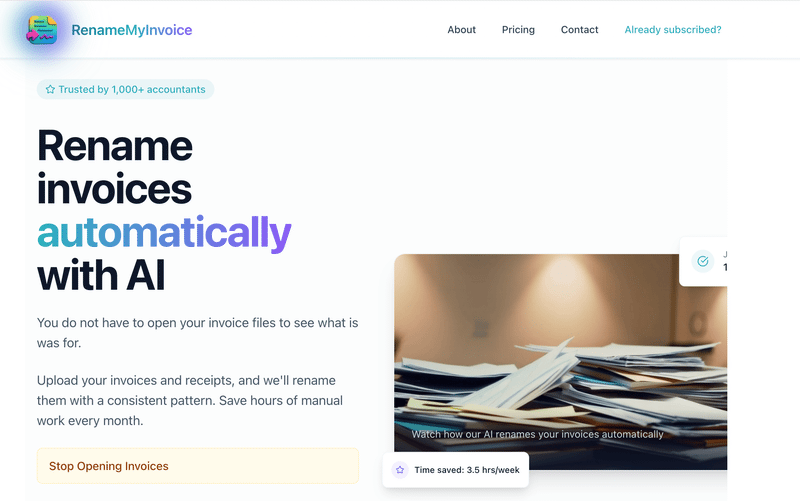
Website: renamemyinvoice.com
5. Dext: Best for freelancers and small businesses who use accounting software
Platform: Web, mobile app (iOS and Android)
Price: From $25.21/month (billed annually), 14-day free trial
Best for: Freelancers, bookkeepers and small businesses who feed invoices into Xero, QuickBooks or Sage
Dext does not rename PDF files in the traditional sense. It solves a related but different problem: getting invoice data out of PDFs and into your accounting software automatically. You forward an invoice to Dext, it extracts vendor, amount, date and tax, and pushes that data directly to Xero, QuickBooks or Sage, without manual entry.
The tradeoff is that documents live inside Dext’s system, not in your own Google Drive or folder structure. If your goal is a clean, consistently named file in cloud storage, Dext is not the right tool. If your goal is to stop manually entering invoice data into your accounting software, it is one of the best tools available.
For freelancers and small businesses who use Xero or QuickBooks, the honest answer is often: use both. Filently for clean filenames and filing in Google Drive, Dext for pushing the data into your books. They solve different parts of the same problem.
| Pros | Cons |
|---|---|
| Extracts vendor, amount, date and tax from invoices and receipts | Documents live in Dext, not in your own cloud storage |
| Direct integration with Xero, QuickBooks, Sage | Monthly subscription |
| Mobile app for capturing receipts on the go | Pricing increases as team grows |
| 14-day free trial | Customer support reported as slow by some users |
Website: dext.com
Quick Comparison
| Tool | Platform | Price | Where files live | Best for | Setup |
|---|---|---|---|---|---|
| Filently ⭐ | Web / Google Drive | First 25 free, from $6/mo | Your Google Drive | Ongoing automation + batch processing | Very low |
| File Juggler | Windows | $40 one-time | Your computer | Rule-based, predictable formats | Medium |
| Hazel | macOS | $42 one-time | Your computer | Scriptable Mac automation | Medium |
| RenameMyInvoice | Web (any device) | 10/day free, from $10/mo | Their servers (deleted after 24h) | One-time batch cleanup | Very low |
| Dext | Web / Mobile | From $25/month | Dext’s system | Accounting software integration | Low |
⭐ First 25 documents free, no credit card needed
Which tool is right for you?
If you use Google Drive and want it to just work: Filently is the right starting point. No rules to configure, no batches to run. Files get renamed when they arrive. See how automatic Google Drive file management fits into a broader filing setup.
If you are on Windows and your invoices come from consistent sources: File Juggler is a solid one-time purchase. Set up the rules once, let it run.
If you are on macOS and want maximum flexibility: Hazel gives you more control than any other tool, especially if you are comfortable with scripting.
If you have a backlog to clean up: Filently handles this too. Drop your existing files into the inbox folder and they are processed in bulk, the same way new files are. If you want to do a one-time cleanup without a subscription, RenameMyInvoice renames up to 10 files per day without an account. Upload your invoices, download the renamed files, done.
If you use Xero, QuickBooks or Sage and want invoice data in your books automatically: Dext is built exactly for this. It extracts the data and pushes it to your accounting software, though note that documents live in Dext, not in your own Google Drive.
For most freelancers and small business owners dealing with ongoing invoice volumes, Filently removes the most friction: nothing to configure, nothing to remember to run, and the first 25 documents are free. Invoices are the obvious starting point; the same tools handle contracts, receipts and statements.
For renaming beyond invoices — photos, project documents, any file type — Windows, Mac and AI each solve it differently.
Frequently Asked Questions
How do I rename a PDF invoice file automatically?
The simplest way is to use a tool that reads the PDF content and builds the filename from what it finds inside. Filently does this automatically when you connect it to Google Drive, with no manual steps or rules to configure. For a one-time batch, RenameMyInvoice lets you upload multiple invoices and download them renamed in seconds, with no account required for up to 10 files per day. File Juggler (Windows) and Hazel (macOS) are good options if you prefer a local tool that runs in the background.Can I rename multiple PDF invoices at once with different names?
Yes. Content-based tools like Filently, File Juggler, Hazel, and RenameMyInvoice can process batches of invoices and give each one a different name based on its content. The key is that each PDF needs readable text (or OCR support) so the tool can extract the vendor name, invoice number, and date from each file individually.What is the best naming convention for invoice files?
The format that works best for sorting and searching isYYYY-MM-DD_VendorName_Invoice-Number.pdf, for example 2026-03-15_AcmeCorp_Invoice-1052.pdf. Date first ensures files sort chronologically. Vendor name and invoice number make individual files instantly findable. The same date-first pattern works for every other document type, not just invoices.How do I automate invoice naming for new client folders?
Set up a folder structure first (Clients > ClientName > Invoices), then connect a tool to watch the relevant folder or email inbox. Filently handles both the naming and the filing automatically: an invoice arrives, gets renamed, and lands in the right client folder without manual steps. This is the typical setup for accountants and bookkeepers managing multiple client folders.Is it safe to let a tool read my PDF invoices automatically?
It depends on where your invoices go during processing. The most private options are tools that never move your files at all. File Juggler and Hazel process everything locally on your computer, so your data never leaves your machine.
Filently takes a different approach for Google Drive users. It identifies each invoice by its content to generate the right filename, processing it only on servers in Switzerland and the EU. Your original files stay in your Google Drive, and Filently doesn’t store copies of them. Filently is CASA Tier 2 certified, which means Google has independently verified its security practices for applications that access Drive data.
RenameMyInvoice and Dext both require uploading documents to their own servers for processing. Both delete files after a set period, but your invoices do temporarily leave your own storage during that time. For one-time batch use with non-sensitive documents, that is manageable. For ongoing processing of confidential financial records, a Drive-native or local tool is the more secure choice.
Can software rename PDF files automatically based on their content?
Yes. Content-based renaming software uses OCR to extract text from each PDF, then identifies the document type and pulls out the details that make a real filename: vendor name, invoice number, date, amount. The result is that a batch of files all named “invoice.pdf” or “scan001.pdf” each get unique, meaningful names without you writing a single rule. Filently does this automatically inside Google Drive. File Juggler (Windows) and Hazel (macOS) let you build content-based rules that run locally on your computer. RenameMyInvoice handles batches of up to 10 files per day without an account.Ready to stop renaming PDF invoices by hand? Connect Filently to your Google Drive and let it handle every invoice from now on.
First 25 documents free. 2-minute setup. No credit card needed.