
📌 TL;DR: For a one-off batch rename on Windows, start with PowerRename (free), Bulk Rename Utility or ReNamer; on Mac, A Better Finder Rename. If you don’t want a subscription, Bulk Rename Utility, Advanced Renamer and A Better Finder Rename are free for personal use or a one-time purchase. To rename documents by what’s inside them, you need an AI tool: Renamer.ai works on files on your computer, renamed.to across Google Drive, Dropbox and OneDrive. If your documents live in Google Drive and should also land in your existing folders, that’s what Filently does.
Quick answer by job:
| Your job | Pick |
|---|---|
| Rename a batch once on Windows, for free | PowerRename |
| Complex rules or thousands of files on Windows | Bulk Rename Utility or ReNamer |
| Photos and videos by EXIF or GPS data | Advanced Renamer |
| Batch renaming on a Mac | A Better Finder Rename |
| Rename from a list or spreadsheet | Bulk Rename Utility, ReNamer or Advanced Renamer |
| Name documents on your computer by their content | Renamer.ai |
| Clean up file names in Dropbox or OneDrive | renamed.to |
| Name and file documents in Google Drive, ongoing | Filently |
| Rename files already in Google Drive | Filently (inbox folder; soon Deep Clean) |
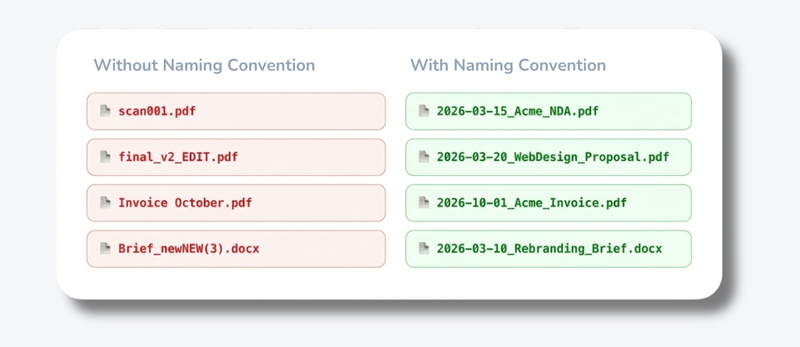
File naming software (also called file renaming software) changes many file names at once, using rules, file metadata or, in AI tools, the file’s content. Need to rename hundreds of files with consistent names? These tools do it in seconds. Here’s what you need to know about the top tools and which one is right for you. A tool only helps once the convention behind it is decided — five rules cover almost every case. Most of the tools below are one-off batch renamers you run yourself; if the problem is files arriving every week rather than a backlog you clear once, that is a different job.
Top File Naming Software Compared
1. Bulk Rename Utility (Windows): Best for Maximum Control
Best for: Power users who need maximum flexibility
Price: Free (personal/home use), from $92.95 one-time (commercial license for business use)
Bulk Rename Utility is a powerful Windows renaming tool that can handle 100,000+ files in a single operation. It offers extensive renaming options and is one of the most feature-rich free tools available. The Windows application itself is completely free to download and use for personal use at home. You only need to purchase a commercial license if you’re using it within a business or for commercial purposes.
Key Features:
- Add, remove, or replace text in file names
- Auto-numbering with custom formats
- Regular expression support
- EXIF data extraction (photos)
- File attribute modification
- Preview before renaming
- Undo functionality
| Pros ✅ | Cons ❌ |
|---|---|
| Extremely powerful | Overwhelming interface (100+ options visible) |
| Free for personal use | Steep learning curve |
| Fast performance | Windows only |
| Works with folders and files simultaneously | Requires manual configuration each time |
| Commercial license required for business use |
Verdict: Pick Bulk Rename Utility if you’re on Windows and want every renaming option in one window, for example to rename thousands of photos by EXIF date in a single run.
2. Advanced Renamer (Windows & Mac): Best for Photo and Media Metadata
Best for: Users who want power with better organization
Price: Free for casual use (since September 2025 capped at 10,000 files and 5 renaming methods per batch); personal and commercial licenses are one-time purchases, priced at checkout
Advanced Renamer offers 13 different renaming methods and works on both Windows and Mac. The interface is more organized than Bulk Rename Utility, with methods presented as separate modules rather than all-at-once. You can download and use it free for casual personal use, but if you use the program frequently or for commercial purposes, a license is required to support continued development.
Key Features:
- 13 renaming methods (replace, remove, add, case change, etc.)
- Metadata extraction (EXIF, ID3, video tags)
- GPS-based naming (adds location to photos)
- JavaScript support for custom rules
- Batch modes (rename, copy, or move files)
- Import/export rename configurations
| Pros ✅ | Cons ❌ |
|---|---|
| Cross-platform (Windows & Mac) | Still requires technical knowledge |
| More organized interface than Bulk Rename Utility | Must set up rules for each session |
| Supports GPS coordinates in file names | Learning curve for JavaScript features |
| Can rename, move, and copy in same operation | No automatic file type detection |
| Free for casual use | License required for frequent/commercial use |
Verdict: Pick Advanced Renamer if you want a cleaner interface than Bulk Rename Utility, work on a Mac, or name photos and videos by metadata such as GPS location.
3. PowerRename (Microsoft PowerToys): Best Free Option for Windows
Best for: Windows 10/11 users who want Microsoft integration
Price: Free
PowerRename is part of Microsoft PowerToys, a set of utilities for power users. It integrates directly into Windows Explorer’s right-click menu, making it the most accessible renaming tool on Windows.
Key Features:
- Right-click context menu integration
- Search and replace in file names
- Regular expression support
- Real-time preview
- Bulk rename files and folders
- Match case sensitivity
- Undo functionality
| Pros ✅ | Cons ❌ |
|---|---|
| Built by Microsoft (trusted source) | Windows 10/11 only |
| Integrates into Windows Explorer | Requires PowerToys installation |
| Simple for basic tasks, powerful for advanced | Less feature-rich than Bulk Rename Utility |
| Free and actively maintained | Still requires manual pattern definition |
| No separate application to open |
Verdict: Pick PowerRename if you’re on Windows 10 or 11 and want a free search-and-replace rename straight from the right-click menu.
4. A Better Finder Rename (macOS): Best for Mac
Best for: Mac users who need serious batch renaming power
Price: $29.95 one-time; the free trial renames up to 10 files at a time
A Better Finder Rename (ABFR) has been the Mac benchmark for batch renaming since 1996. Despite the dated-looking website, it’s actively maintained — version 12.29 shipped in May 2026 with macOS 26 compatibility. It integrates directly into Finder’s right-click menu, so renaming feels like a native macOS action rather than a separate workflow.
Where Bulk Rename Utility throws 100+ options at you simultaneously, ABFR structures them more cleanly while still covering everything: EXIF and IPTC metadata extraction, sequential numbering, date/time insertion from file metadata, find-and-replace, regular expressions, and action sequences you can save and reuse.
Key Features:
- Finder right-click integration (no separate app to open)
- EXIF, ID3, IPTC metadata support
- Sequential numbering with custom formats
- Date and time from file metadata or attributes
- Regular expression support
- Find and replace in filenames
- Save and reuse action sequences
- Real-time preview
- Undo functionality
| Pros ✅ | Cons ❌ |
|---|---|
| The Mac renaming standard since 1996 | macOS only |
| Finder right-click integration | Not free (trial renames 10 files at a time) |
| Actively maintained for latest macOS | More features than most people need |
| Save and reuse sequences | Steeper learning curve than simpler tools |
| Comprehensive metadata support |
Verdict: Pick A Better Finder Rename if you’re on a Mac and want one paid tool that renames photos, music and documents from Finder’s right-click menu.
5. ReNamer (Windows): Best Balance of Power and Ease
Best for: Windows users who want rule-based renaming that’s quick to learn
Price: Free Lite edition (up to 5 rules and 5 presets); paid Pro license for unlimited rules and commercial use
ReNamer by den4b has been around for over 20 years and is a favorite in Reddit threads about batch renaming, mostly for its clean interface. You stack rules in order (insert, replace, number, change case, regular expressions), watch the preview, and save the sequence as a preset. Metadata from photos, music, video and documents can go into the name, and a Pascal Script rule covers anything the built-in rules can’t.
Key Features:
- Rules applied in sequence, with a live preview
- Metadata tags from photos, music, video and documents
- Regular expressions and Pascal Script for custom logic
- Mapping rule: rename from a list (CSV or clipboard)
- Reusable presets
- Undo
| Pros ✅ | Cons ❌ |
|---|---|
| Cleaner and easier to learn than Bulk Rename Utility | Windows only |
| Rules and presets you can reuse | Lite edition capped at 5 rules and 5 presets |
| Renames from a list | Pro license needed for commercial use |
| Free for personal use | Still needs a pattern for every job |
Verdict: Pick ReNamer if you’re on Windows and want rule-based renaming that’s easier to learn than Bulk Rename Utility, with presets you can reuse.
6. Filently (Web / Google Drive): Best for Documents in Google Drive
Best for: Freelancers, small businesses and households who want new documents filed automatically and existing files in Google Drive renamed too.
Price: First 25 documents free, then from $6/month
Filently renames documents by their content, like the two AI tools below, but it works inside Google Drive and also files each document into the folders you already have. It connects to your Google Drive, identifies each incoming document by its content (PDFs, Word docs, invoices, contracts, scans), and applies your naming convention in the background.
Where the classic renamers above need you to define a pattern and trigger the rename, Filently handles it the moment a file arrives. A supplier invoice comes in as invoice.pdf and becomes 2026-03-15_AcmeCorp_Invoice-1052.pdf, filed in the right folder, without you touching it.
You can organize files already in your Google Drive with Filently too. Just move them into an inbox folder in your Google Drive, and Filently renames them and files them into the right folders.
With Deep Clean, you can clean up your existing Google Drive in one go. Filently renames your files and, if you want, reorganizes them: you decide whether your files stay where they are or move into a new folder structure. The first beta is already running, and the public launch is coming soon.
Key Features:
- Identifies documents by their content, not just their filenames
- Applies your naming convention automatically
- Files documents in the correct Google Drive folder
- Works continuously in the background
- Renames existing files too
- Works in practically any language
- GDPR-compliant, CASA Tier 2 certified
| Pros ✅ | Cons ❌ |
|---|---|
| Runs automatically; review each suggestion first if you prefer | Google Drive only (Dropbox/OneDrive coming soon) |
| Identifies documents by content, scans included | Doesn’t touch files on your computer |
| Files into your existing folders, no patterns to configure | 25 free documents once, then a subscription |
| Works without your computer running | Not ideal for one-time batch renames of photos without text (e.g. vacation photos) |
| Takes documents by email forwarding too |
Verdict: Pick Filently if you use Google Drive and want new documents named and filed into the right folders automatically. With Deep Clean you will also be able to bring order to your existing files, without handling them one by one.
7. Renamer.ai (Windows, Mac & Web): Best AI Renamer for Files on Your Computer
Best for: Renaming documents on your own computer by what’s inside them
Price: Free for 25 files a month; paid plans from $9.95/month (subscription)
Renamer.ai is an AI renamer from Slovenia, on the market since early 2025. You drop files into its desktop or web app, and it names them from their content: document type, date, company, amount. Its Magic Folders feature watches a folder on your computer and renames new files as they arrive, and since version 5 it can process files entirely on your machine.
Key Features:
- Content-based names for 30+ file types, scans included
- Template builder for your naming pattern
- Magic Folders: watches a local folder and renames new files
- Desktop app (Windows, macOS) and web app
- Local processing mode
| Pros ✅ | Cons ❌ |
|---|---|
| Works on files anywhere on your computer, NAS or external drive | Subscription only, no one-time license |
| 30+ formats, including Office, email and design files | No direct Google Drive connection, only through a synced folder |
| 25 free files every month | Doesn’t file documents into your existing folders by content |
| Local processing option | Young product with few independent reviews |
Verdict: Pick Renamer.ai if your documents live on your own computer and you want them renamed by content, in batches or as they arrive in a folder.
8. renamed.to (Web: Google Drive, Dropbox, OneDrive): Best for Clean Names Across Clouds
Best for: Clean filenames across several cloud storage providers
Price: Free for 50 documents a month; paid credit packs from $9 for 1,000 documents (one-time, valid 12 months)
renamed.to renames documents by their content in Google Drive, Dropbox and OneDrive, and gives developers an API and a command-line tool. Filing is a setting on top: you pick a destination folder. In our hands-on test in Google Drive, asked to use an existing folder structure, it duplicated the folders instead of filing into the originals. Our full comparison of Filently and renamed.to walks through the test.
| Pros ✅ | Cons ❌ |
|---|---|
| Google Drive, Dropbox and OneDrive, all live | Files into one destination folder, not your whole structure |
| 50 free documents every month | Setup decisions: folder strategy, sharing folders with its automation account |
| API and command-line tool | Credits expire after 12 months |
Verdict: Pick renamed.to if you mainly want clean filenames, file into one destination folder, or work across Google Drive, Dropbox and OneDrive.
File Naming Software at a Glance
| Tool | Platform | Price | License | Names by content? | Best For | Difficulty |
|---|---|---|---|---|---|---|
| Filently | Web / Google Drive | From $6/month | Subscription | Yes, and files into your folders | Ongoing documents in Google Drive | Very Easy |
| Bulk Rename Utility | Windows | Free / from $92.95 | Free personal, one-time business | No, by rules | Power users | Hard |
| Advanced Renamer | Windows/Mac | Free / paid license | Free casual, one-time license | No, by rules and metadata | Photo/video pros | Medium |
| PowerRename | Windows 10/11 | Free | Free | No, by rules | Quick access | Easy |
| A Better Finder Rename | macOS | $29.95 | One-time | No, by rules and metadata | Mac power users | Medium |
| ReNamer | Windows | Free Lite / paid Pro | Free personal | No, by rules | Rules that are easy to learn | Medium |
| Renamer.ai | Windows/Mac/Web | Free 25/month, from $9.95/month | Subscription | Yes | Documents on your computer | Easy |
| renamed.to | Web (3 clouds) | Free 50/month, credits from $9 | Credit packs | Yes | Clean names across clouds | Easy |
Also Worth a Look
- Ant Renamer (Windows): free and open source, covers the basics plus EXIF and MP3 tags.
- NameChanger (Mac): a simple, free batch renamer (donationware) with a live preview.
- NameQuick (Mac): renames by content with watch folders and can run entirely on your Mac with your own AI key.
- Zush (Mac, Windows): an AI renamer that names files by content, sold as a subscription or a one-time license.
- KRename (Linux): the free KDE batch renamer, with preview and undo.
- F2 (Windows, Mac, Linux): a free, open-source command-line renamer with a dry run by default and undo.
- FileBot (all platforms): built for movies, TV shows and anime, matched against online databases. Not for documents like invoices or contracts.
Bulk Rename Utility vs. Advanced Renamer
Both are Windows favorites, both are free for personal use, and both sell one-time licenses for business use. The differences:
| Bulk Rename Utility | Advanced Renamer | |
|---|---|---|
| Interface | Every option on one screen | Separate methods you stack |
| Learning curve | Steep | Moderate |
| Mac | No | Yes |
| Free version | Free for personal use at home | Free for casual use, up to 10,000 files and 5 methods per batch |
| Business use | One-time license from $92.95 per computer | One-time commercial license |
| Extras | Regex, EXIF, file attributes | Regex, EXIF, GPS and video tags, JavaScript |
Pick Advanced Renamer if you want a cleaner interface or work on a Mac. Pick Bulk Rename Utility if you’re on Windows and want maximum control in one window.
File Renaming Software Without a Subscription
Most classic file renaming software is free or a one-time purchase:
- Free: PowerRename, Ant Renamer, KRename, NameChanger, F2, ReNamer Lite, and Bulk Rename Utility for personal use
- One-time license: Bulk Rename Utility for business ($92.95 per computer), Advanced Renamer, A Better Finder Rename ($29.95)
AI renamers mostly charge for usage, because naming files by their content runs on AI for every document: Renamer.ai and Filently are subscriptions, renamed.to sells credit packs (from $9 for 1,000 documents, valid 12 months), and Zush and NameQuick also sell one-time licenses. A simple rule: for a one-off batch, buy once; for documents that keep arriving, a subscription replaces work you’d otherwise do every week.
Why Manual Renaming Tools Fall Short
These tools work great for one-time cleanups. Organizing 10,000 vacation photos? Perfect. Batch renaming music files? Excellent. As standalone file naming software, they do exactly what they promise.
But for documents that keep arriving, they’re clunky. Here’s why:
You’re still doing the work. Every file needs a pattern. Every pattern needs your input. Invoice from Client A? Open tool, create pattern, apply. Invoice from Client B? Repeat. It’s manual labor with a fancy interface.
They don’t know what’s inside. Photos have EXIF data. Music has ID3 tags. But PDFs, Word docs, and invoices? No metadata. The tool can’t tell if “document.pdf” is an invoice, contract, or receipt. You have to.
They require discipline. You need to remember to use them, open them, and apply rules consistently. Miss a week when you’re busy? Files pile up with messy names. Your system breaks.
Tired of renaming files by hand? Filently renames your documents automatically and files them where they belong.
First 25 documents free. No credit card needed.
How to Automate File Renaming
To automate file renaming, you need something that runs when a file arrives instead of when you remember: a script on a schedule, an automation flow, or a renamer that watches a folder. From most to least hands-on:
- A script. PowerShell on Windows or a shell script on Mac renames files by pattern, and Task Scheduler or cron runs it on a schedule. Free, but you write and maintain it. Our guide to mass renaming files has ready-made one-liners.
- An automation flow. Power Automate, Zapier or Make can rename files as they arrive in a folder, with rules you build.
- A watch folder in a desktop renamer. Renamer.ai’s Magic Folders and NameQuick rename new files in a folder on your computer by their content.
- A cloud service. renamed.to and Filently rename files as they land in cloud storage; Filently also files each one into your existing Google Drive folders.
Options 1 and 2 rename by pattern (date, counter, text). For names based on what’s inside a document, you need 3 or 4. Our guide to mass renaming files walks through each method step by step, scripts included.
The Alternative: Automatic File Renaming Software
The classic renamers above share the same limitation: they wait for you. You open them, define a pattern, trigger the rename, and close them. Which means every time files pile up, you’re back at step one.
Filently works the other way around: it runs continuously in the background. Every document that arrives in your Google Drive gets the right name and lands in the right folder automatically, without you touching it. The filing side works the same way: watch a folder, identify the document, move it.
Which Tool Should You Choose?
The honest answer depends on what you’re renaming.
If it’s a one-time job (old photos, a music library, a folder of scans), Bulk Rename Utility or Advanced Renamer will do it well. They’re free, powerful, and built exactly for that. Mac users will find A Better Finder Rename handles anything they throw at it — and the Finder integration means there’s no separate app to remember to open.
If you want documents renamed by their content, pick by where they live: Renamer.ai for files on your computer, renamed.to for clean names across several clouds, and Filently if they’re in Google Drive and should also land in your existing folders.
If you’re dealing with documents that arrive regularly (invoices, contracts, insurance letters, briefs from clients), manual tools become a discipline problem. You have to remember to use them, set up the pattern each time, and actually run them. Most people don’t, and the files pile up.
That’s the gap Filently fills. As automated file renaming software, it runs in the background continuously. No patterns, no triggers, no catching up on Friday afternoon.
Ready to bring order to your Google Drive? Connect Filently once, and every new document gets the right name and folder automatically.
First 25 documents free. No credit card needed.